


How to Test HTML Email Rendering Before You Hit Send
An email that looks perfect in your code editor can arrive broken in a real inbox. Outlook ignores half your CSS, Gmail strips your <style> block, and dark mode inverts your logo into an unreadable smear. Email rendering testing is the step that catches these problems while you can still fix them — before a customer sees a password reset email with the button missing.
This guide covers what to check, in what order, and which tools to use, whether you're a developer coding transactional emails or a marketer building campaigns in a drag-and-drop editor.
Why Email Rendering Testing Matters
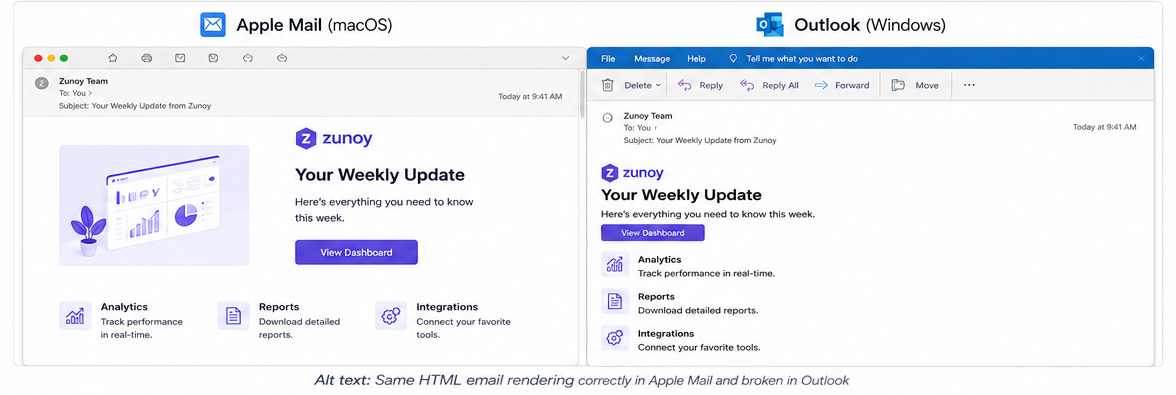
Every email client renders HTML and CSS with its own engine, and none of them fully agree on the rules. A layout that's pixel-perfect in Apple Mail can collapse into a single unstyled column in Outlook, or get its images blocked entirely by Gmail's default settings.
Skipping rendering tests means finding out about these breaks from a support ticket or an angry reply, after thousands of copies already went out. A five-minute rendering check before send catches a broken button, a missing fallback font, or an image path that 404s — the kind of defect that is invisible in a browser preview but obvious the moment a real client renders it.
What Causes Emails to Render Differently Across Clients?
There's no single "email browser." Each client — desktop app, webmail, or mobile app — parses your HTML with a different engine, and several of the most popular ones don't behave like a normal web browser at all.
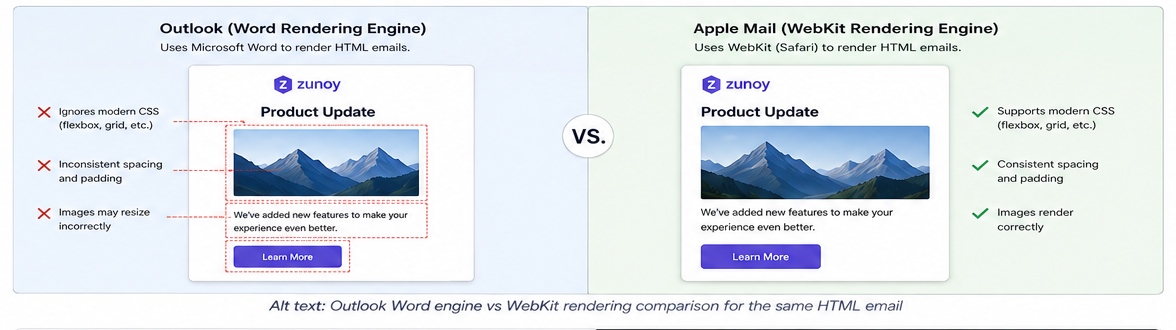
Outlook desktop uses Microsoft Word's rendering engine, not a browser engine. Classic Outlook for Windows (2007 through the classic Microsoft 365 build) hands your email HTML to Word to render it. Word's engine ignores flexbox, CSS grid, and :hover pseudo-classes outright, and it's known for introducing artifacts like unexplained white lines and incorrect image sizing that don't appear anywhere else (Litmus). Microsoft has been rolling out a new version of Outlook for desktop that uses a browser-based engine instead, but the Word-engine versions will stay in circulation for years, since large organizations upgrade software slowly (Email on Acid).
Gmail and Apple Mail use browser-derived engines but apply their own restrictions. Apple Mail runs on WebKit, the same engine behind Safari, and generally supports modern CSS well. Gmail strips <style> tags in some contexts, blocks external images by default, and applies its own dark mode color inversion that has nothing to do with the CSS you wrote.
Dark mode is a third, independent variable. Some clients auto-invert your colors, some respect the prefers-color-scheme media query, and some do both depending on the platform. Gmail's webmail interface doesn't support the prefers-color-scheme query at all, while Gmail's Android app auto-inverts light backgrounds and Apple Mail auto-inverts consistently across iOS and macOS (Email on Acid). The same HTML can look fine, washed out, or completely inverted, purely based on which app opens it.
How Do You Test HTML Email Rendering Before Sending?
Run a fixed checklist before every send, not just for new templates. Rendering bugs also show up when a marketing team swaps a hero image, changes a button color, or edits copy in a drag-and-drop editor — any of those can silently break a layout that tested fine the last time.
- Validate the HTML first. Run the code through an HTML/CSS validator to catch unclosed tags, missing
altattributes, and broken inline styles before you even preview it. Malformed HTML is the single most common cause of layout collapse in Outlook. - Preview across major clients. Use a rendering tool or a set of real test accounts to check Gmail, Outlook (both classic and New Outlook), Apple Mail, and Yahoo Mail.
- Turn images off. Many clients block remote images by default. Confirm the email is still readable and the call to action is still findable with every image blocked.
- Check dark mode on at least three clients. Test Gmail (web and app), Outlook, and Apple Mail specifically, since each one applies color inversion differently.
- Test on a real mobile screen. A responsive preview in a browser dev tool is not the same as an iOS Mail or Gmail app rendering. Check at least one iPhone and one Android device or emulator.
- Click every link and button. Confirm tracking parameters resolve correctly and nothing points to a staging URL.
- Send yourself a live test. A rendering tool's screenshot is a simulation. A test send to a real inbox is the only way to confirm subject line, preview text, and sender name all display the way you intended. During development, sending through Zunoy Sandbox instead of a real SMTP provider gets you the same live render without any risk of a test message reaching an actual customer.
What to Check in Every Rendering Test
Beyond the step-by-step workflow, keep this checklist on hand for anything that touches the template:
- Layout holds at both desktop width (600–800px) and mobile width, with no horizontal scroll
- Fonts fall back correctly on clients that don't support your primary web font
- Buttons remain tappable — at least 44x44px — and don't rely on background images alone
- Alt text is present and descriptive on every image, for when images are blocked
- Dark mode doesn't invert your logo or brand colors into something unreadable
- Unsubscribe link and physical address are present and correctly linked, for compliance
- Preheader text displays the intended preview, not a stray line of boilerplate
When a QA pass across multiple clients turns up several issues at once, log each one as a separate ticket in a tool like Zunoy Bug Tracker rather than a single catch-all note — it keeps "fix Outlook padding" separate from "fix Gmail dark mode logo" so neither gets lost before the next release.
Testing the Two Trickiest Cases: Outlook and Dark Mode
Two categories of rendering bug cause most of the support tickets: an Outlook-only layout break, and a dark mode contrast failure. Both deserve a dedicated check instead of getting lumped into a general "preview across clients" step.
Testing Outlook Rendering
Outlook deserves its own step because it breaks the most, and in the most predictable ways. If your email has a broken layout in only one client, it's almost always Outlook.
Common Outlook-specific failures include background images not displaying, padding and margin being ignored on <div> elements, and buttons collapsing because Outlook doesn't render border-radius or box-shadow. The standard fix is to build layouts with HTML tables instead of <div> and flexbox, and to use Microsoft Office conditional comments (the <!--[if mso]--> syntax) to serve Outlook-specific fallback markup without affecting other clients.
Because Outlook's behavior differs by version — classic Outlook 2016 does not render the same as Outlook.com or the New Outlook — an Outlook email rendering test that doesn't specify which build was checked is not a complete test.
Testing Dark Mode Rendering
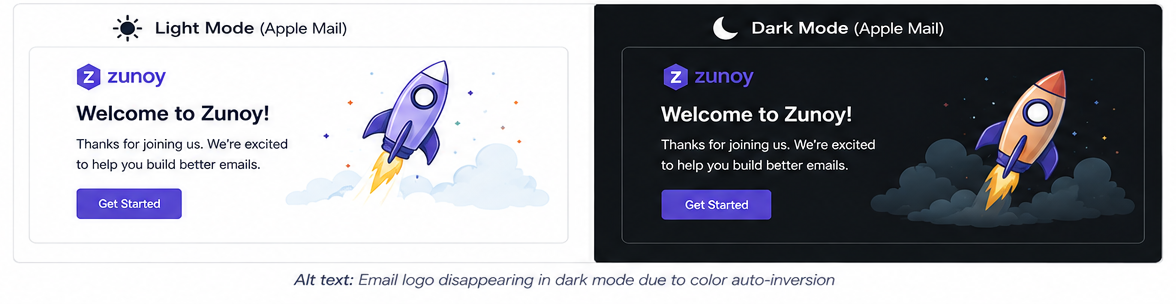
Dark mode testing catches a different category of bug: not broken layout, but broken contrast. A white logo on a transparent background looks fine in light mode and disappears entirely once a client auto-inverts the background to black.
Test dark mode by opening the same email in Gmail's Android app, Outlook on Windows, and Apple Mail on iOS — three clients that each apply dark mode with different logic. A free tool like Dark Mode Checker simulates the color-inversion algorithm each client uses and shows side-by-side previews without needing four separate accounts. Look specifically for text that becomes invisible against an inverted background, and logos that lose their intended color.
Manual Testing vs. Dedicated Rendering Tools
You can test manually by creating accounts on Gmail, Outlook.com, Yahoo, and iCloud, sending your email to each one, and opening it on a real or emulated phone. This works, costs nothing, and is often enough for a small team sending occasional campaigns. It does not scale well — checking ten clients by hand for every send adds up fast, and it's easy to skip a step under deadline pressure.
Dedicated rendering tools like Litmus and Email on Acid render your email across dozens of client and device combinations from a single upload, cutting a 30-minute manual check down to a few minutes. They're built for marketing teams shipping polished campaigns and include spam testing and analytics on top of rendering previews.
For developers testing transactional email — password resets, receipts, notifications — the more relevant gap is usually earlier in the pipeline: confirming the email even sends correctly, and inspecting its actual HTML output, without mailing real users during development. Zunoy Sandbox captures emails sent from a staging or development environment, so you can view the full rendered HTML, check the spam score, validate links, and inspect raw headers without swapping in a real SMTP provider or risking a test email landing in a customer's inbox. It's a fit for the "does my app send a valid, well-formed email" question that comes before the "does this campaign look right in Outlook" question a dedicated rendering tool answers.
Whichever approach you use, the test needs to happen before every send that touches the template — not once when the email is first built.