How to Use an Online Whiteboard with Zunoy Canvas
Most tools make you watch a demo before you understand them. Zunoy Canvas doesn't. When figuring out how to use an online whiteboard, keep it simple: create a project, pick a template, invite team members, and start to collaborate on a shared board before you finish your coffee. This is the ultimate online whiteboard for teams.


Free forever plan
No credit card needed
No downloads
Set up in 30 seconds
STEP 1
Create or Choose From a Template
Start Fresh or Start Smart — Either Way, You're Moving in Seconds.
A proper workspace setup in Zunoy Canvas starts with a Project — think of it as your folder. Inside each project, you create boards. That's where the real work happens.Not sure where to begin? Following a basic Visual Collaboration tool Workflow is easy when you don't have to start from scratch. Zunoy Canvas gives you three ways to hit the ground running:One project. Multiple boards. Every option open from the moment you sign in.

Private Templates
Boards your team has built and saved for repeated use. Your formats, your structure, ready when you need them.

Community Templates
Real boards built and shared by designers, developers, educators, and founders across the Zunoy Canvas community. Browse, pick one that fits, and make it yours.

Zunoy Templates
Curated starter boards built by the Zunoy team for the most common workflows. Brainstorming sessions, project planning, retrospectives — all ready to go.
STEP 2
Invite Your Team
Your Team is One Invite Away.
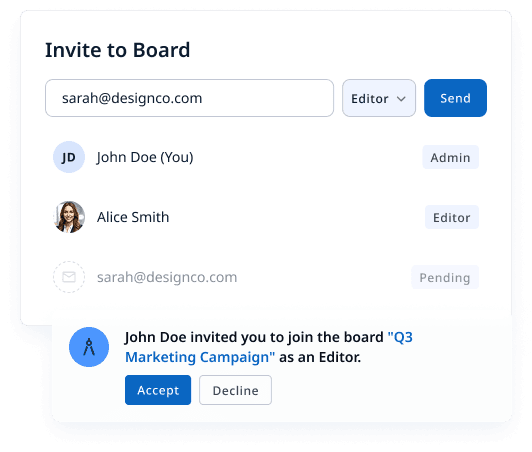
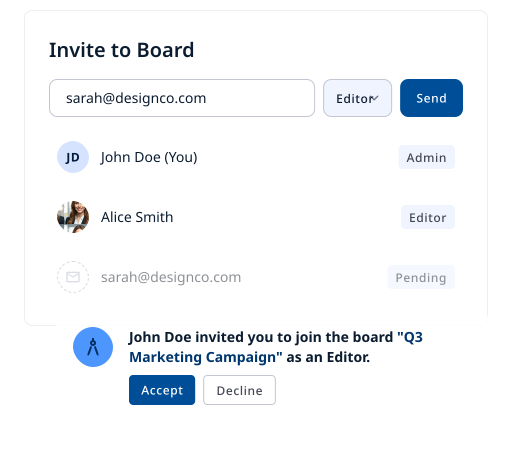
Once your board is ready, bringing your people in takes seconds. If you are building an online whiteboard for teams, getting everyone on the same page needs to be instant.Already on Zunoy Canvas? They'll get a notification right inside their workspace — no switching tabs, no digging through emails. Not on Zunoy Canvas yet? No problem. They'll get an email invite with a direct link. One click, quick signup, and they're in — right where you need them.No chasing. No confusion. Just your team on the board. When you create a board, you decide who gets in and what they can do:

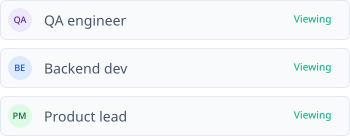
Viewers
They can see everything, change nothing.

Editors
They can build, draw, and actively collaborate.

Admins
They manage the board, the team, and the access.
Invite to Board
STEP 3
Draw and Diagram
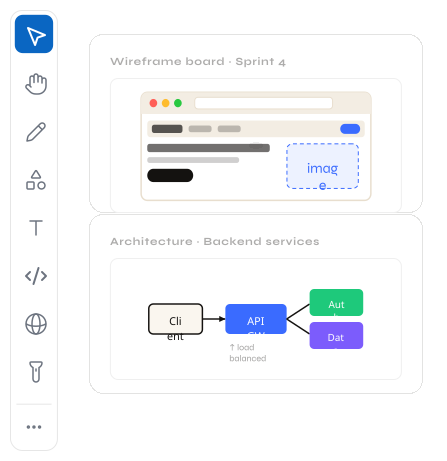
Every Tool Your Team Reaches For. Already on the Board.
Your board is a living space. Not a document. Not a slide deck. A real-time digital canvas where your whole team thinks out loud — together.Draw freely. Build UML diagrams. Drop sticky notes. Add charts, tables, and frames. Write Mermaid syntax and watch it render into a clean technical diagram instantly. Insert images from your device or image library. Add math equations. Use icons to make your board readable at a glance. Point things out with the laser pointer. Set a timer for focused sessions.Knowing how to use an online whiteboard means knowing where your tools are. Everything is right there — no hunting, no hidden menus, no switching tools.
STEP 4
Collaborate on Board

Real-Time Collaboration That Actually Stays Real-Time.
Every change your team makes shows up instantly for everyone on the board. No refreshing. No version confusion. No "which file is the latest?" Just one board, one truth, one team — moving together without missing a beat. Jump into the Live Voice Room and talk while you build — no Zoom, no Slack, no tab switching. Your team's voice is right there on the canvas.

Comments and Mentions That Stay in Context.
Leave comments directly on any element of the board — a diagram, a sticky note, an idea. Mention a teammate and they get notified instantly inside the workspace if they're on Zunoy Canvas, or via email if they're not. No feedback buried in chat threads. No context lost. Every conversation stays exactly where it belongs.

Activity Timeline — Nothing Gets Missed.
Every action on the board is tracked in the activity timeline. See who added what, who commented where, and what changed since you last opened the board. Your team's work stays transparent, accountable, and easy to follow — without anyone having to ask "what happened while I was away?"
STEP 5
Your Board. Live. Anywhere.
When your work is ready to be seen — or even while it's still in progress — you can easily create and share Digital whiteboard workflow content with anyone. You don't even need them to log in to publish and share your vision.
Share a Live Board in One Click.
If you want to know how to use an online whiteboard effectively for external presentations, just hit publish and your board becomes a live shareable link. Send it to a client, a stakeholder, or anyone who needs to see your work inside or outside Zunoy Canvas. They see exactly what you see. Every update you make shows up in real time on their screen. No downloading — just a live board that speaks for itself.
Clean View. No Distractions.
Non-Zunoy users see only the board — nothing else. No toolbars. No workspace. No project panels. Just your work, presented cleanly. Exactly the way you intended it.
Frequently Asked Questions
Do I need to create an account to use Zunoy Canvas?
Yes — a free Zunoy Canvas account is all you need to get started. No credit card. No commitment. Just sign up and your workspace is ready in seconds.
Can I start from a template instead of a blank board?
Absolutely. Zunoy Canvas gives you three types of templates to choose from: private templates your team has saved, community templates built and shared by real teams, and Zunoy curated starters for common workflows. Pick one, make it yours, and your team is moving in minutes.
What is the difference between a Viewer, Editor and Admin?
Three roles. Three levels of access. Viewers can see everything on the board and change nothing. Editors can draw, build, and actively collaborate. Admins manage the board, the team, and who gets access.
How do I create my first project and board?
A solid workspace setup is simple. Create a project first — think of it as your folder. Then create boards inside that project. That's where you open up, start building, and do the actual work. Simple as that.
Can I invite someone who doesn't have a Zunoy account?
You can't add them as a collaborator without an account — but you can still create and share Digital whiteboard workflow links with a live view for anyone. If they want to actively participate, they'll need to sign up, which takes about 30 seconds and costs nothing.
Can multiple people collaborate on the same board at the same time?
Yes — that's exactly what an online whiteboard for teams is built for. Multiple team members can collaborate, draw, edit, comment, and build on the same board simultaneously. This fulfills all the core Visual Collaboration tool Workflow seamlessly.
GET STARTED
You Already Know How to Use an Online Whiteboard. Now Try It.
Your canvas is ready the moment you are.


Canvas
Zunoy Canvas is the free online whiteboard tool and visual collaboration software.
Operational
Mail Us
support@zunoy.com
Copyright © 2026 - Mentcube Innovations Pvt Ltd.. All Rights Reserved.
v0.1.227