The Draft Is Yours. The Better Version Can Be Too.
Write freely, then refine with AI that understands the work in front of it. Improve a sentence, reshape a section, check readability, review keywords, and keep every version of your thinking in one editor.

Try Zunoy AI free
BYOA supported
Private by default
AI is included in every plan
Works across your entire workspace
Writing Should Not Require Five Different Tools
You Should Not Have to Leave Your Draft to Improve It.
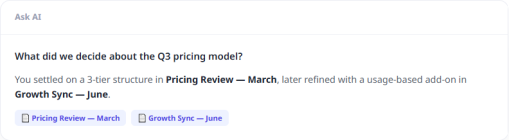
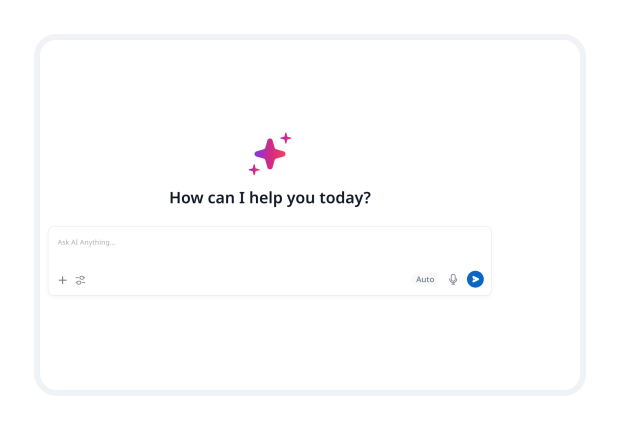
Most writing workflows break the moment the first draft is done. You write in one place, check grammar somewhere else, use AI in another tab, check readability in a separate tool, then copy everything back and hope nothing gets lost.Zunoy's AI Powered Editor keeps the entire editing process where the writing already lives. You can make a quick change, get a second version, review how the draft reads, and decide what stays — without breaking your flow.
More Control Over Every Draft
From “Good Enough” to Ready to Share.
Use AI when you need a faster way forward, and use editor insights when you need a clearer view of what the draft still needs.
Improve Writing
Rewrite
Shorten
Expand
Simplify
Fix Grammar
Change Tone
Summarize
Generate Ideas
Ask AI
Shape the Writing, Then Understand It.
Use AI when you need a faster way forward, and use editor insights when you need a clearer view of what the draft still needs.
Shape the Writing
Make a selected sentence, paragraph, or full section clearer without rewriting everything yourself.
AI actions: Improve Writing, Rewrite, Shorten, Expand, Simplify, Fix Grammar, Change Tone, Summarize, Generate Ideas, Ask AI
Understand the Draft
See what is working and what may need another pass before you publish or share.
Editor insights: Content Score, Readability Score, Keyword Density, Summary Stats
Review Every Change. Protect What Matters.
AI gives you options. You decide which version belongs in the final draft.
Review Every Change
AI gives you options. You decide which version belongs in the final draft.
Review tools: Edit, Compare, Regenerate, Link Check
Protect Sensitive Context
Keep selected personal or confidential information out of AI requests when it does not need to be included.
Privacy tool: Privacy Redaction
A Better Edit Starts With the Draft You Already Have.
Whatever You Are Writing, Start With What You Have.
Turn Meeting Notes Into a Clear Update
You have pages of rough notes from a project meeting. Summarize the discussion, pull out the decisions, tighten the language, and share a clean update with the team.
Improve a Landing Page or Blog Draft
You have the right ideas, but the copy feels repetitive, too long, or difficult to scan. Use AI edits, readability insights, keyword density, and link checks to make the page stronger before it goes live.
Prepare Something for a Client or Stakeholder
Turn internal working notes into a polished brief, proposal, report, or follow-up. Adjust the tone, fix grammar, summarize long sections, and redact sensitive details before sharing externally.
Questions About the AI Powered Editor.
What is an AI powered editor?
An AI powered editor helps you write, rewrite, improve, analyze, and refine content directly inside the place where you are already working.
Can I use the AI Powered Editor on existing notes?
Yes. Open an existing note, select the text you want to improve, and choose an AI action from the editor.
What can the editor help me do?
You can rewrite text, improve clarity, shorten or expand content, simplify language, fix grammar, change tone, summarize notes, generate ideas, and ask AI for a custom edit.
Can I compare AI suggestions with my original writing?
Yes. Compare mode lets you review suggested changes before deciding what to keep.
What does regenerate mean?
Regenerate creates a new AI version when the first suggestion does not match the direction, tone, or level of detail you need.
What is a Content Score?
A Content Score gives you a quick signal about how complete and developed a draft is, helping you identify whether it may need more depth, structure, or refinement.
Write Faster. Edit Smarter. Keep the Final Say.
Start with the rough version. Use AI to make it clearer, stronger, and easier to share — without losing the thinking that made it yours.


Notes
Zunoy online notes helps you capture every idea, organise the knowledge behind it.
Operational
Contact Us On
Mail Us
support@zunoy.comCopyright © 2026 - Mentcube Innovations Pvt Ltd.. All Rights Reserved.