Manual Uptime Monitoring for Everything You Can't Check Automatically
Not everything can be checked by a computer. Manual uptime monitoring lets you track services, vendors, internal tools, and physical systems that can't be checked automatically. Set the status yourself while keeping it connected to status pages, incidents, alerts, and reporting.

What to Use It For
Things Nothing Else Can Check

Internal Tool
Track internal tools with no public URL or endpoint.

Legacy System
Keep older systems visible with manual site checks when there is no reliable automated check available.

No-Access Vendor
Track a service you depend on even when you can't reach it programmatically.

Physical Setup
Use Manual Monitoring for office wifi, server room, and anything without a digital pulse.
How Manual Monitoring Works
Simple by Design
Set the Status Yourself
Mark it Operational, Degraded, or Down, whenever you need to.

Shows Up Like Any Other Monitor
It appears on your status page the same way an automatic one does.

Works With Incident Management
Assign it, track it, resolve it, exactly like a real check would.

No Background Checking
Nothing runs on its own. The manual monitoring process only changes status when you say so.
Getting Started
Set One Up in Under a Minute
Name it and pick Manual
Give it a name, and choose Manual as the type.
Set the current status
Pick where it stands right now, and add a quick note if it helps.
Add it to a status page
Link it wherever you want people to actually see it.
Turn on Incident Management
So a status change still creates a trackable incident, just like normal.
Benefits
Why This Actually Helps
Manual monitoring keeps services visible across status pages, incidents, alerts, and reports when automated checks aren't possible.

One place for everything, not just what's automated
Your website health monitoring finally reflects the whole picture, not just what a computer could check.
Still gets a real incident when something's wrong
A manual status change works exactly like an automatic one for tracking purposes.
No pretending a check exists when it doesn't
You're not stretching an automatic monitor to cover something it was never meant to check.
Full control over what "down" even means
You decide the status, so it reflects reality, not a guess.
Manual Monitoring Works With Everything Else You've Set Up
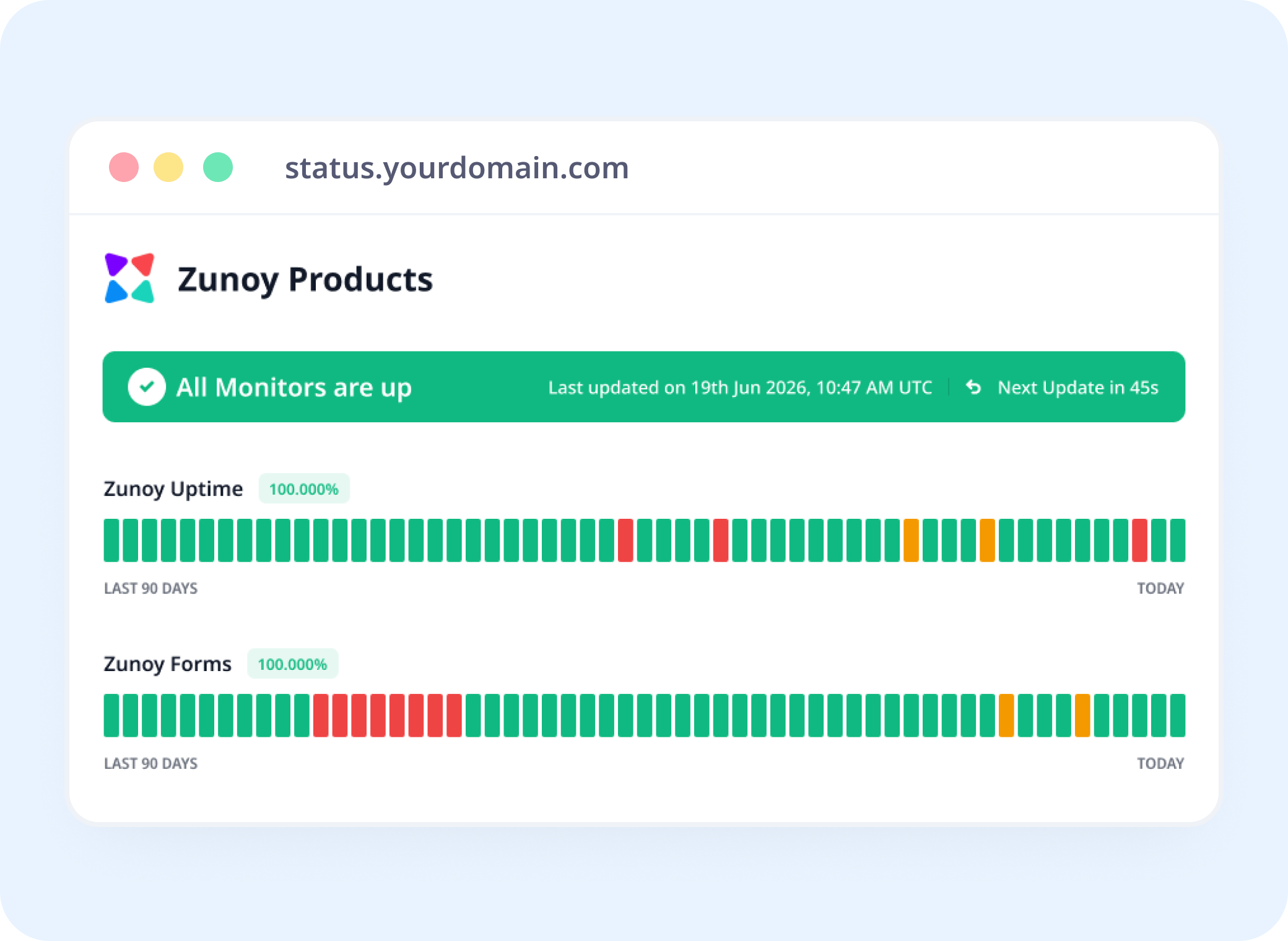
Status Pages
Shows Up Right Alongside Everything Else
Manual monitoring lets you show manually managed services on public or private status pages alongside automated monitors.
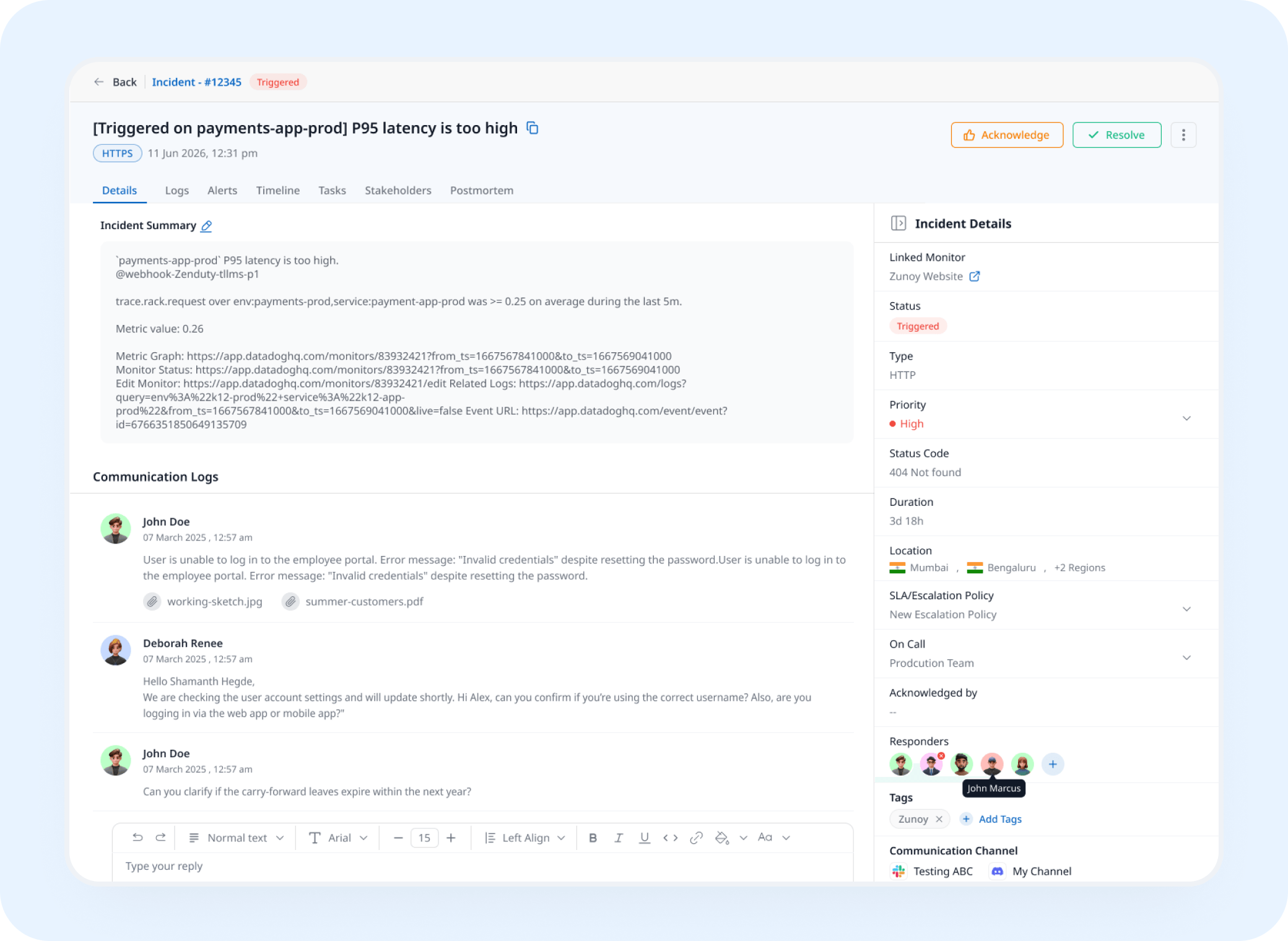
Incident Response
A Status Change Still Opens an Incident
Mark it down, and an incident can open the same way it would for an automatic check.
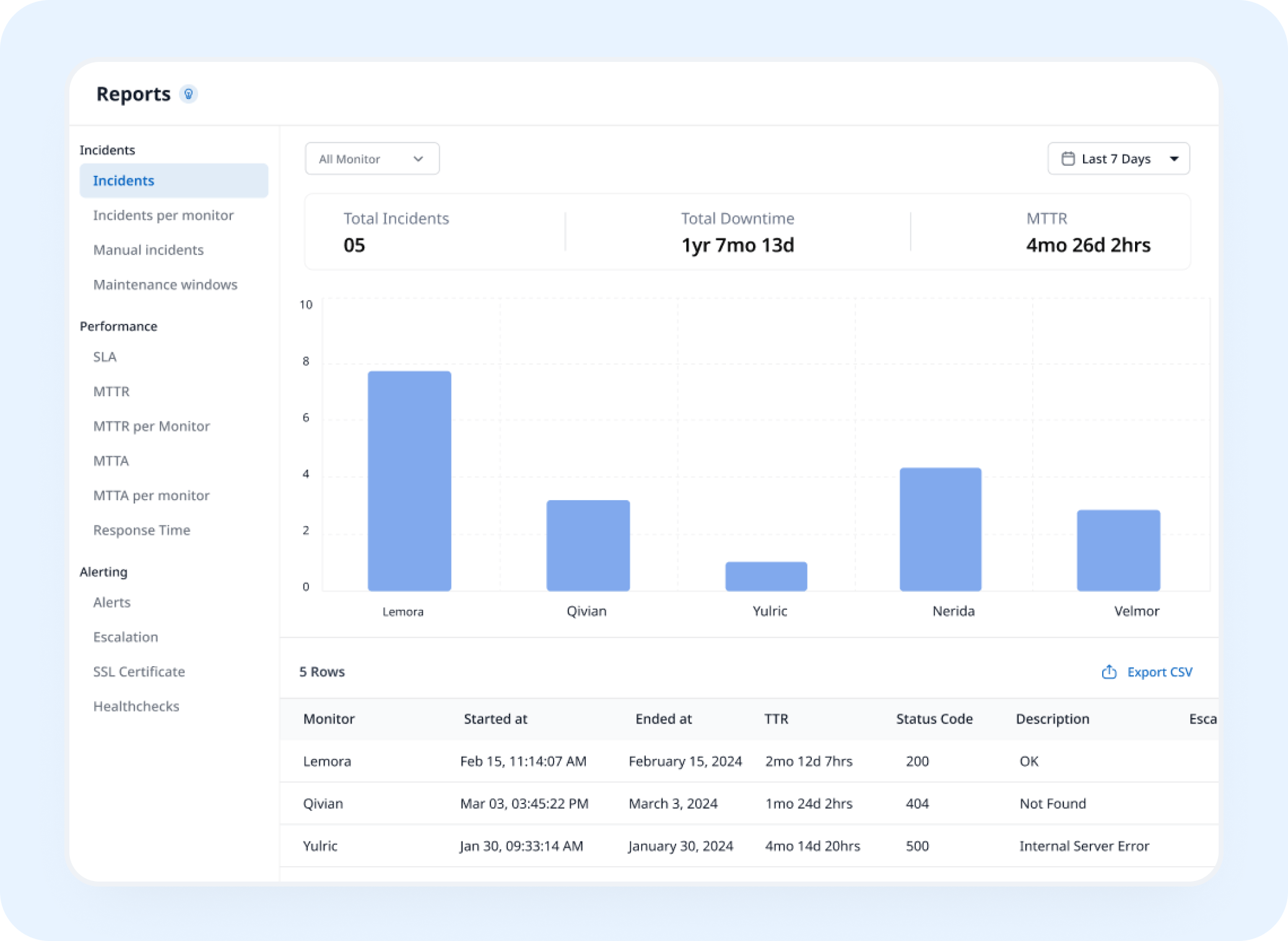
Analysis
Still Builds a History Over Time
Manual uptime monitoring keeps a history of every status change, so you can see when something actually happened.


Stay Notified
Get the Update to the Right Person
A status you set yourself deserves the same visibility as one a computer catches. Send updates to Slack, email, or wherever your team already looks.
You Might Also Want to Check


Real Scenarios
Who This Actually Helps
- IT
IT Teams
Office wifi goes down, and it's reflected on the internal status page within seconds.
- AGENCY
Agencies
A client's vendor has an outage you can't check directly, but you can still report it.
- PLATFORM
Platform Teams
An internal tool with no public URL, still tracked the same way everything else is.
- SUPPORT
Support Teams
A known issue with a third-party service, marked so customers stop asking the same question.
FAQ
Quick Answers About Manual Uptime Monitoring
What is Manual Monitoring?
Manual uptime monitoring lets you control a service's status by hand instead of relying on automated checks. You can still connect it to status pages, incidents, alerts, and history.
Can it show up on my status page?
Yes. Add it to a public or private status page, and it looks just like any other monitor there.
Can I use manual website monitoring instead of automated checks?
Yes. Manual website monitoring lets you control a site's availability status yourself when automated checks are not appropriate or possible.
Does it check anything on its own?
No. Nothing runs in the background. It only changes when you update it.
Does it work with Incident Management?
Yes. Mark it down, and an incident can open just like it would for an automatic check.
Is there a history of past status changes?
Yes. Every change gets logged, so you can look back and see exactly when something happened.
Cover It All
Not Everything Needs a Computer to Watch It
Manual Monitoring gives you control over services that cannot be checked automatically. Set the status yourself and keep it visible across status pages, incidents, alerts, and reporting.
Set the status yourself, anytime
Shows up on your status page
Still tracked through Incident Management