Visual Ping Monitoring That Catches What Text Checks Miss
Sometimes a page breaks in a way that still returns a perfect 200, a button vanishes, a layout shifts, a price changes color for no reason. Visual Ping monitoring takes a real capture of your page and compares it over time, so you catch what a status code never would.

What to Check
Where a Visual Change Actually Matters

Product Page
Catch a layout shift, a missing button, or a price that changed unexpectedly.

Pricing Page
Confirm the page actually looks right, not just that the text matches.

Competitor Page
Page change monitoring tracks a competitor’s page for changes without checking it yourself every day.

Landing Page
Website visual monitoring confirms a redesign didn’t silently break something nobody tested for.
Getting Started
Set Up Visual Ping Monitoring in Under a Minute
Add your website URL
Test it right away to see a real capture, with your actual settings applied.
Add any actions it needs first
Dismiss a popup, log in, whatever needs to happen before the real capture.
Choose what counts as a change
All, Visual, Text, or Element, and set your threshold and wait time.
Set your frequency and confirmation
Check daily or more often, and decide how many checks in a row confirm a real change.
Built-In Checks
More Than Just "Did It Load"

Compare Types
Choose All, Visual, Text, or Element, exactly what should count as a real change.

Pre-Capture Actions
Dismiss a popup or log in first, so the capture shows the page a real visitor sees.

Ignore Elements
Exclude a cookie banner or chat widget by CSS selector, so it stops causing false alarms.

Keyword Tracking
Watch specific words like “Free Shipping” or “Limited Offer” alongside the visual comparison. Only need to check text? Use Keyword Monitoring instead.

Auto-Updating Baseline
Let the baseline update automatically on change, or keep it fixed, your call.

Consecutive Confirmation
Require two or more checks in a row before a change actually counts.
It Works With Everything Else You've Set Up
Visual Ping monitoring doesn't work alone. It connects with status pages, incidents, analysis, and alerts across your workspace.
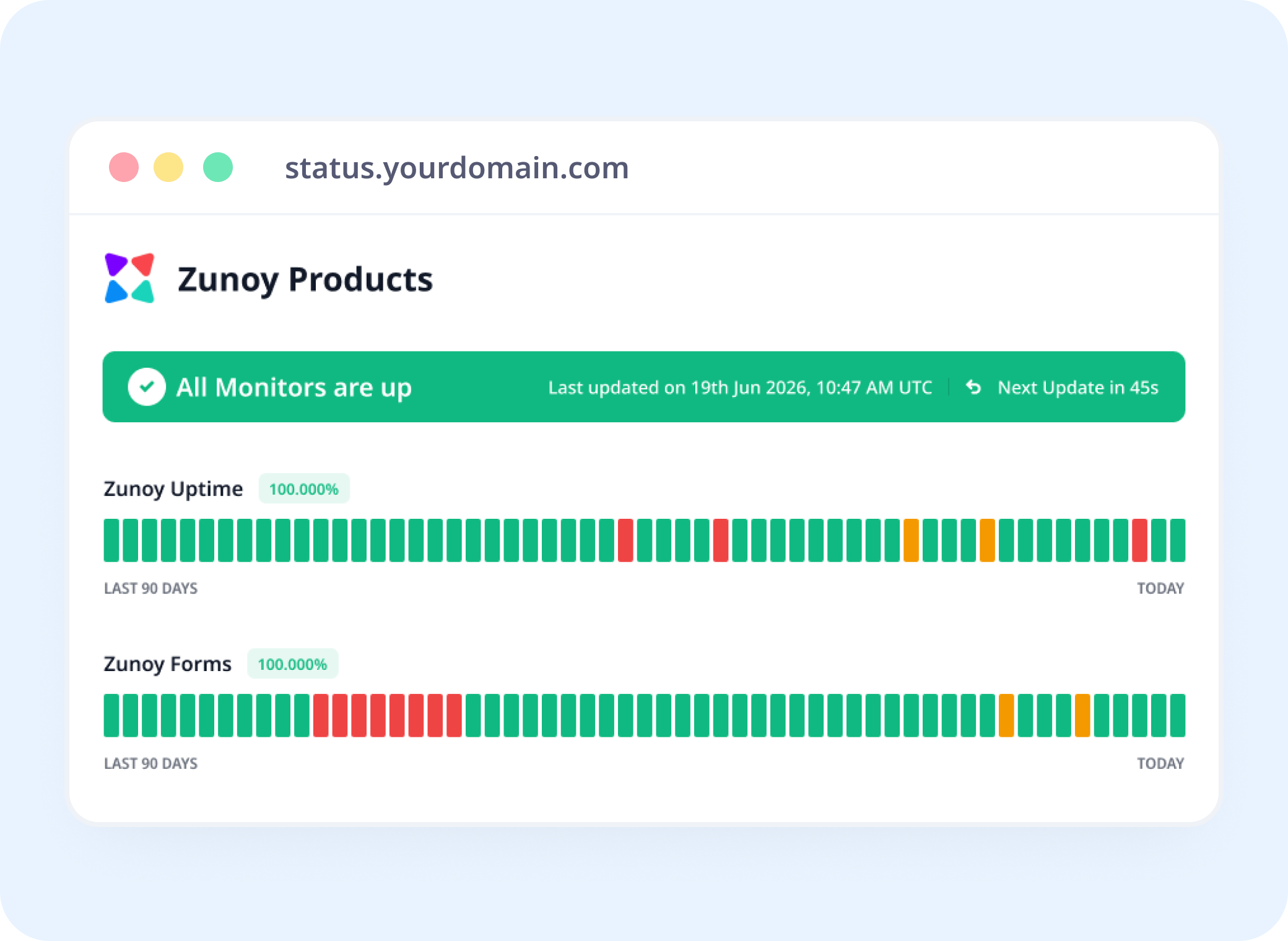
Status Pages
Show Content Health, Not Just Uptime
Add visual change monitoring to a status page, so a change is visible the same way downtime would be.
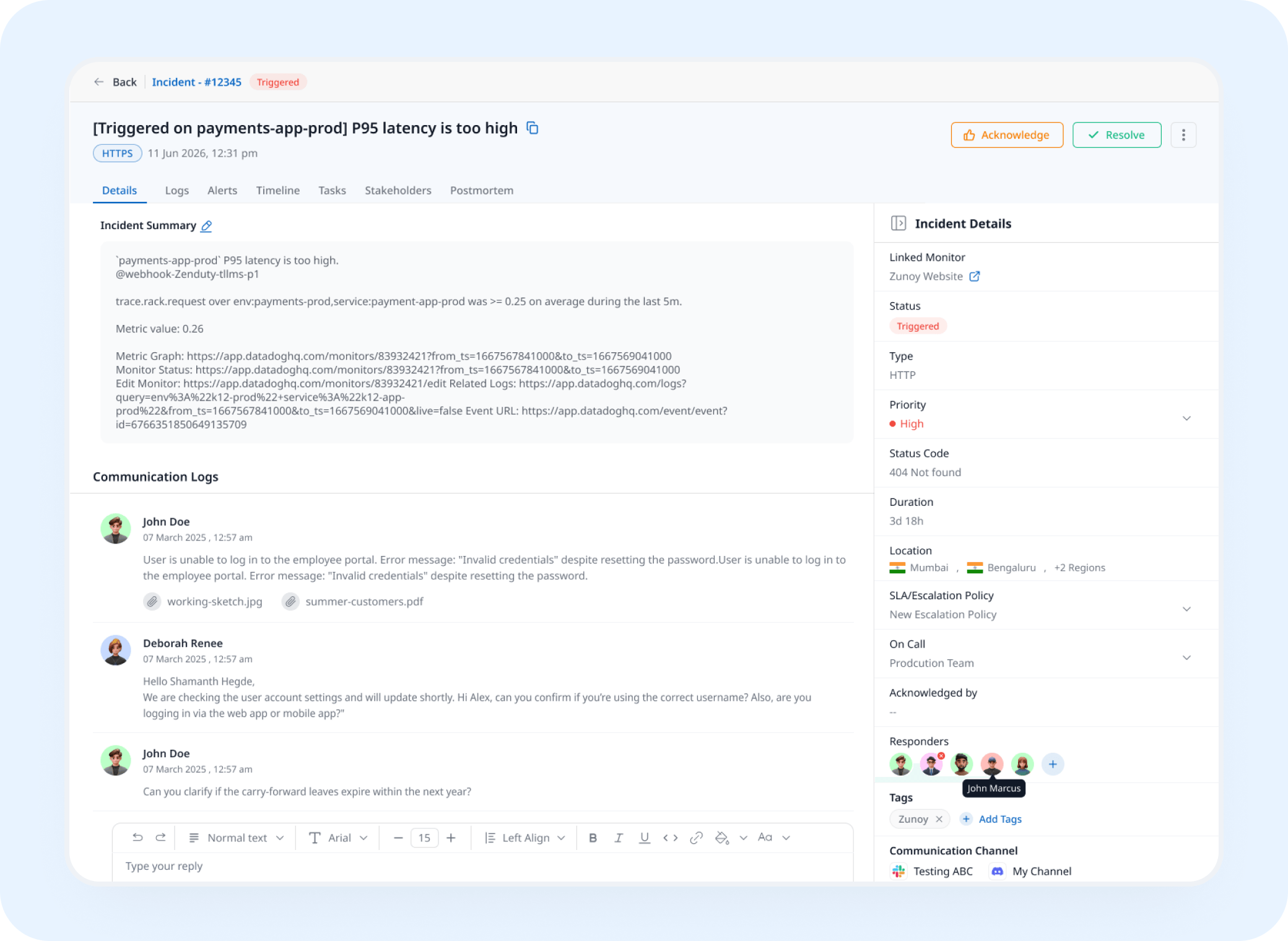
Incident Response
A Confirmed Change Opens a Real Incident
A change that's been confirmed opens an incident automatically, tracked and assigned instead of noticed by someone scrolling past it.
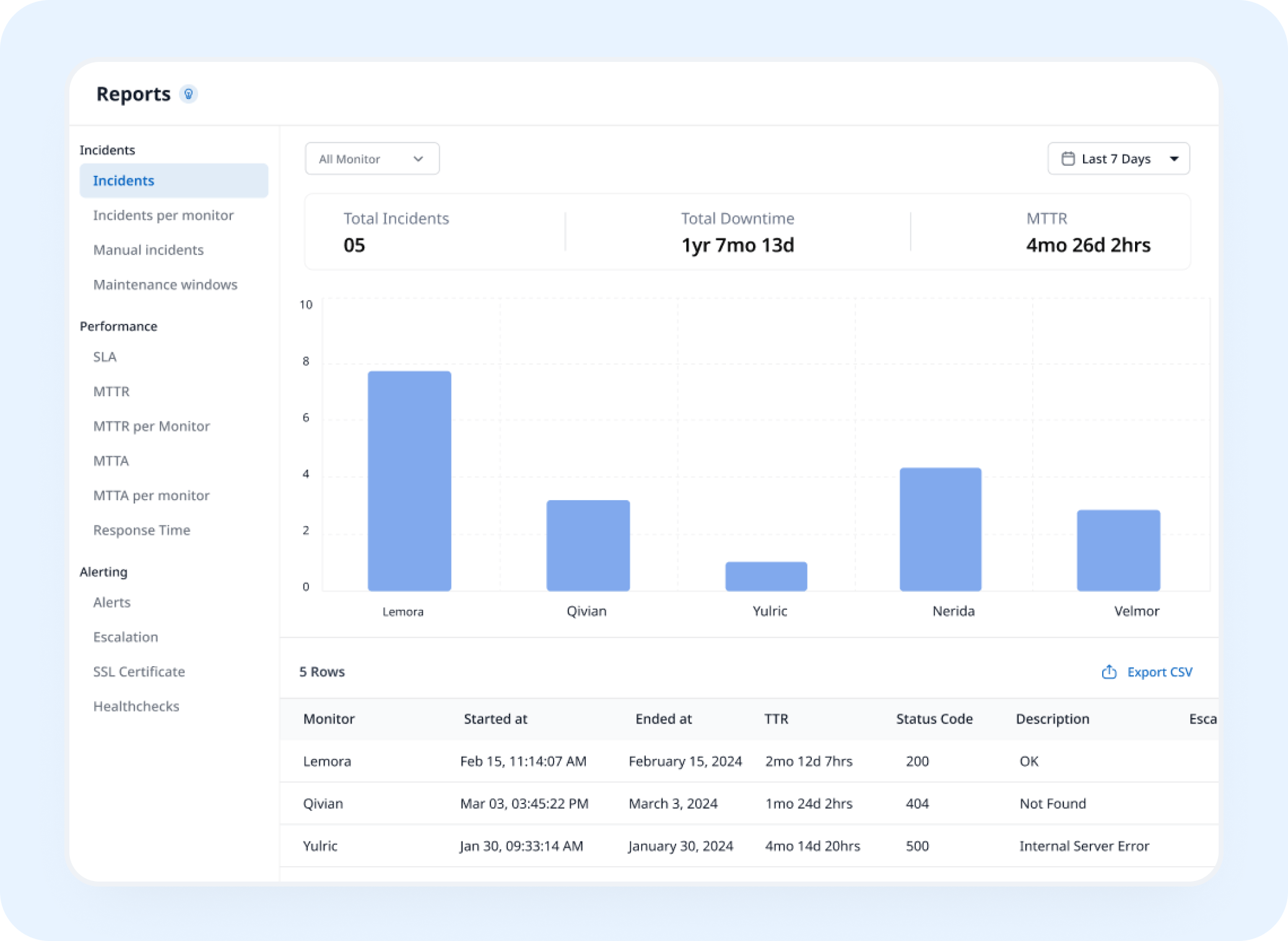
Analysis
See Exactly When Something Changed
Every past capture builds a visual history, useful the moment you need to know exactly when a page actually shifted.
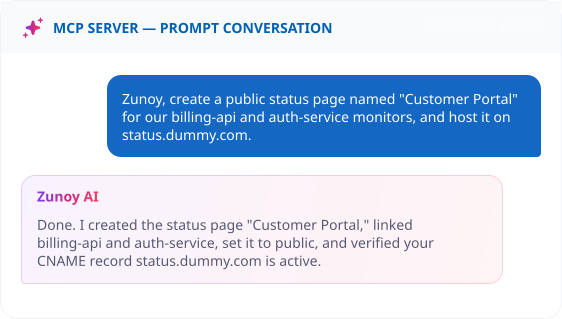
AI Features
Ask AI What Actually Changed
When a change is flagged, ask what happened. AI Agent describes what's different between the two captures instead of you comparing screenshots by hand.
Benefits
What Every Check Actually Verifies
Visual Ping monitoring checks the rendered page, not just the HTTP response. Here's what a real capture can catch.

Catches a visual change nothing else would
A layout shift or missing element a status code or keyword check would never notice.
Ignores the noise you tell it to ignore
A cookie banner or live chat widget won't trigger a false alarm once excluded.
Confirms a real change, not a one-off glitch
Requiring consecutive checks means a flaky render doesn't count as an actual difference.
Sees the page a real visitor sees
Dismiss a popup or log in first, so the capture isn't fooled by what loads before that.
ALTERNATIVE
When a Capture Isn't the Right Fit
Some pages sit behind complex auth flows or don't render consistently enough for an automated capture to trust. Set its status by hand with a Manual Monitor instead, still tracked, still visible, just without the automation.
No automated capture required
Still visible on your status page
Incidents can still be tracked against it


Stay Notified
Get the Alert to the Right Person
A visual change won't show up on a server health check. Send it to Slack, email, or wherever the person who owns that page is already looking.
You Might Also Want to Check


Real Scenarios
Who This Actually Helps
- ECOMM
Ecommerce Teams
A "Sold Out" badge quietly appears on a product that's actually in stock, caught before sales drop off.
- MARKETING
Marketing Teams
A landing page redesign accidentally hides the signup form, caught by visual regression monitoring the same day it went live.
- LEGAL
Legal & Compliance
A competitor's terms of service page changes, flagged the moment it happens instead of found weeks later.
- AGENCY
Agencies
A client's homepage gets edited by mistake, caught before the client notices first.
- PRODUCT
Product Teams
A pricing page shows the wrong plan after a deploy, caught before a customer screenshots it.
FAQ
Quick Answers About Visual Ping Monitoring
What is Visual Ping monitoring?
Visual ping monitoring takes a screenshot of a webpage on a schedule and compares it against a saved baseline to detect visual changes. It alerts you when a layout breaks, content disappears, or a page changes unexpectedly, catching problems that uptime and status code checks miss because the page is still loading successfully.
Can I exclude parts of the page that change all the time?
Yes. Ignore Elements lets you exclude something like a cookie banner or live chat widget by its CSS selector, so it won't cause false alarms.
What is a baseline, and how does it update?
A baseline is the reference version everything else gets compared to. Set it to auto-update whenever a change is confirmed, or keep it fixed.
What's the difference between Visual, Text, and Element comparison?
Visual compares the actual pixels, Text compares the words on the page, and Element compares a specific part you've defined. Choose one, or use All for everything at once.
Does one changed pixel count as a real change?
Not necessarily. Set a change threshold so tiny pixel differences are ignored, and require two or more consecutive checks to confirm a change before it counts.
Can it capture how the page looks on mobile?
Yes. Turn on the mobile device option to capture the page the way a phone would render it.
See the Difference
A 200 Response Doesn't Mean the Page Looks Right
Catch the layout shift, the missing button, the price that quietly changed. Watch it visually, and know the moment something's actually different.
Compares pixels, text, or specific elements
Ignores the noise you tell it to
Alerts you before a customer notices